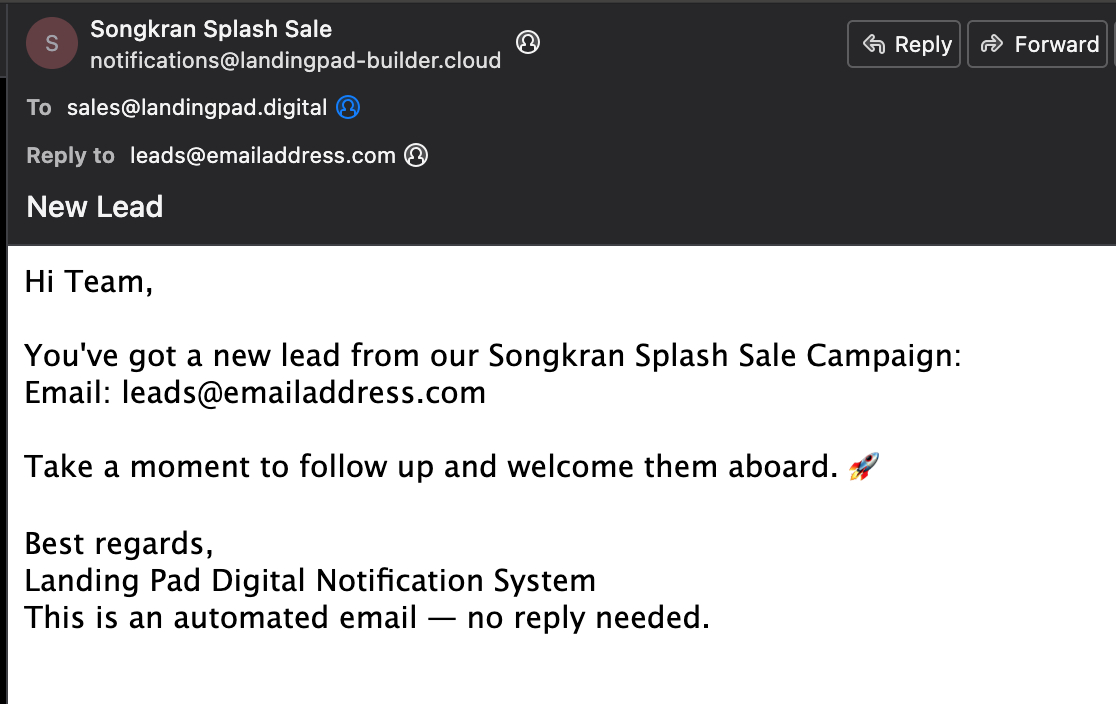
The email notification app will send you an email every time a new lead is generated. In other words, every time the contact form is successful submitted.
Here is how you can set it up.
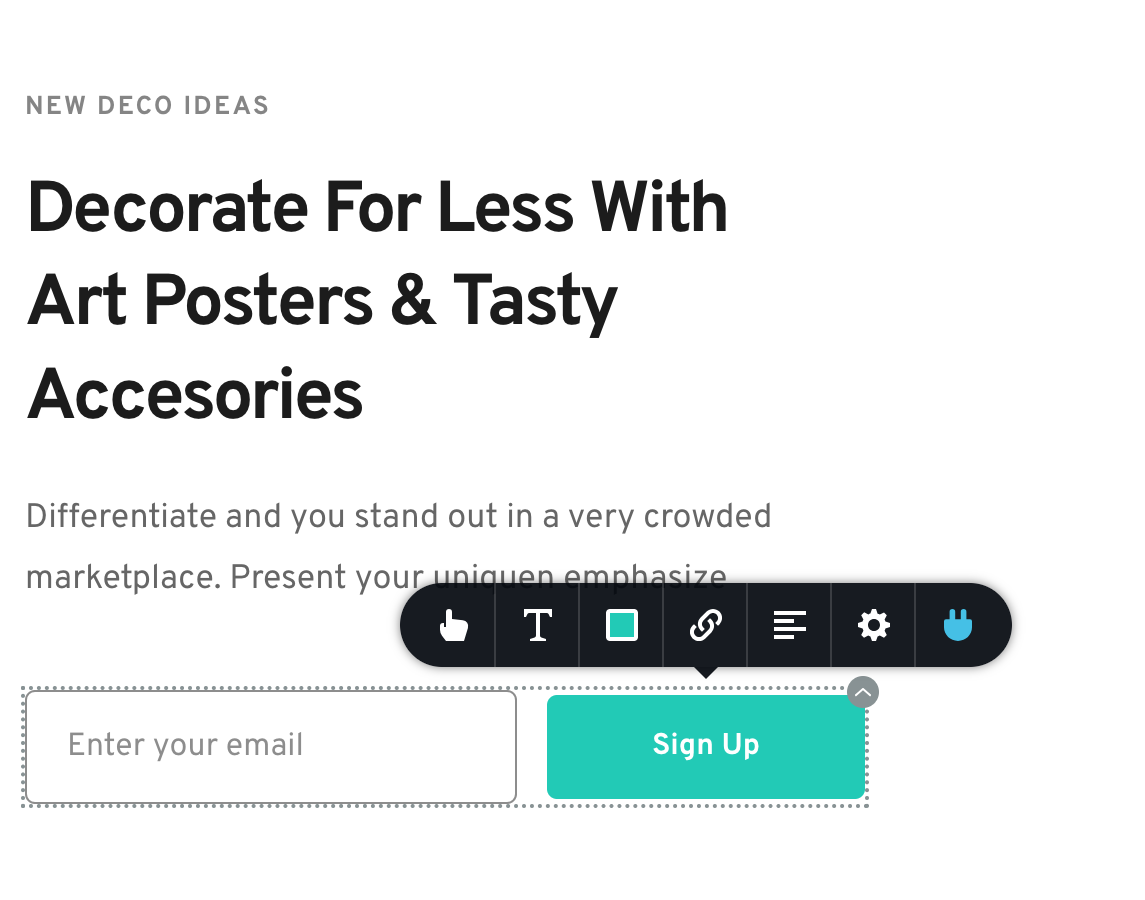
Step 1. Access the App Integrations on the button of any contact form element in the Landing Pad builder
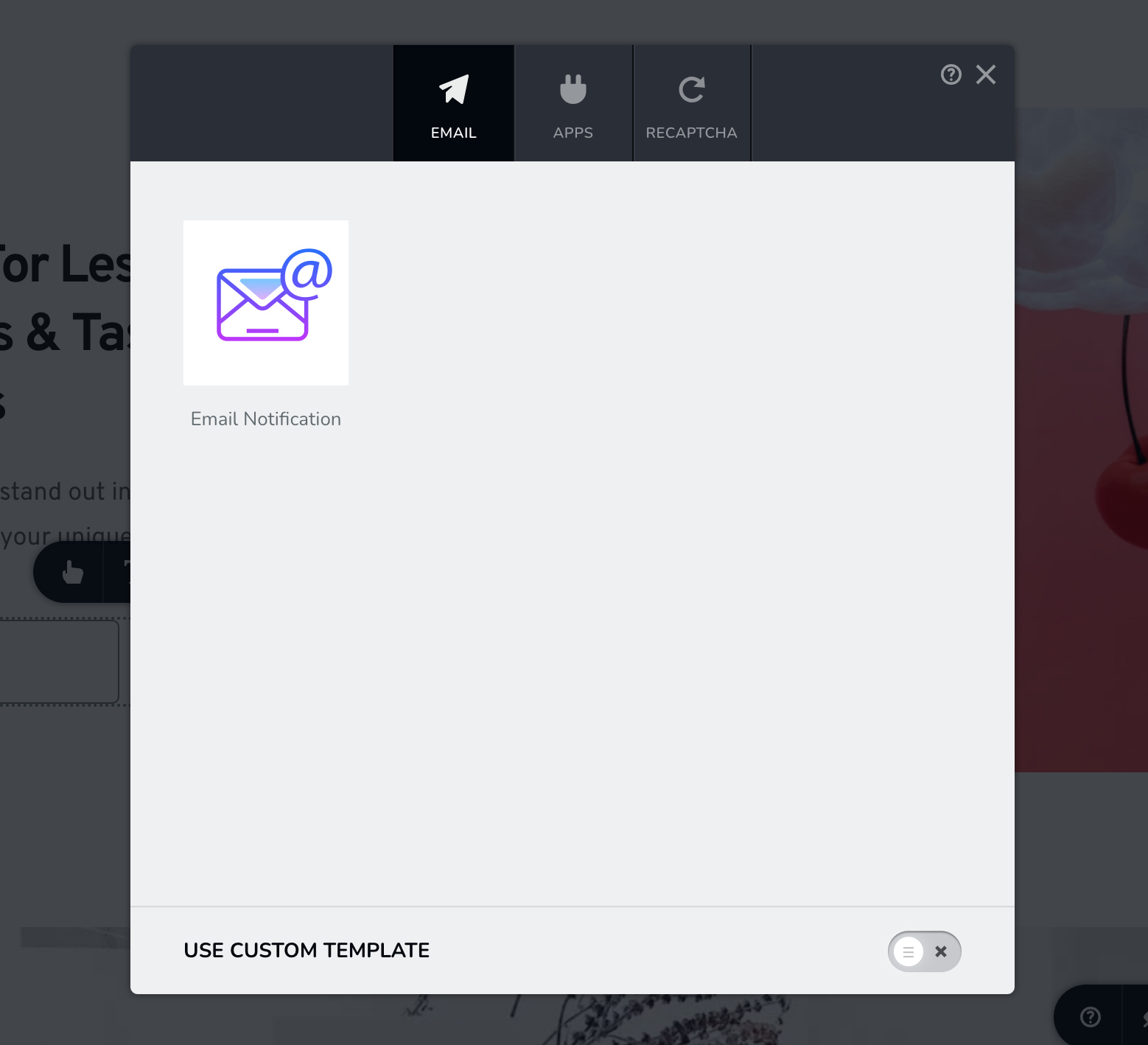
Step 2. On the Email tab click on Email Notification
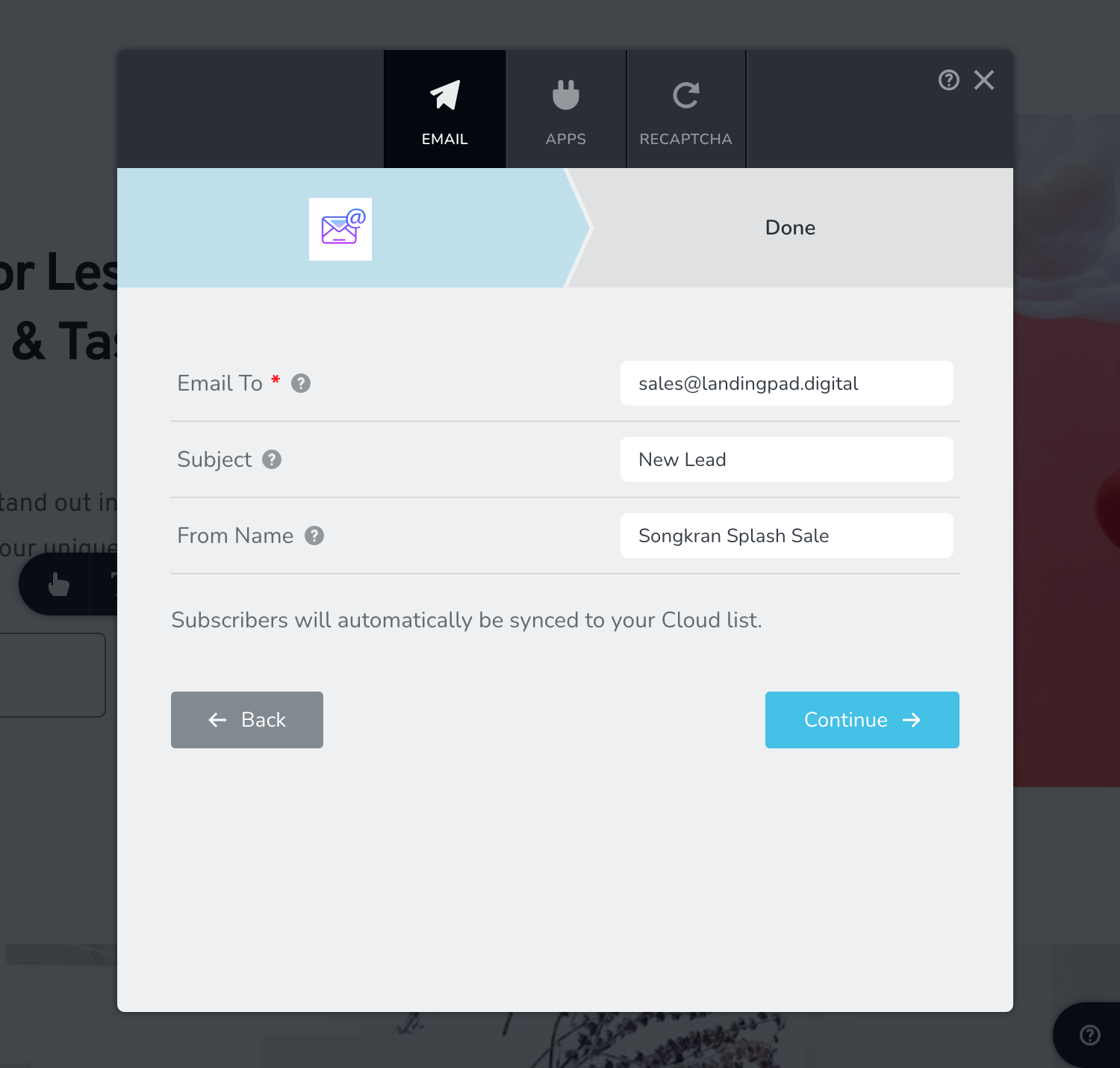
Step 3. Give us the email you want to receive the notification on. You can input multiple emails separated by comas.
Set the email subject and give your form a name then click on Continue.
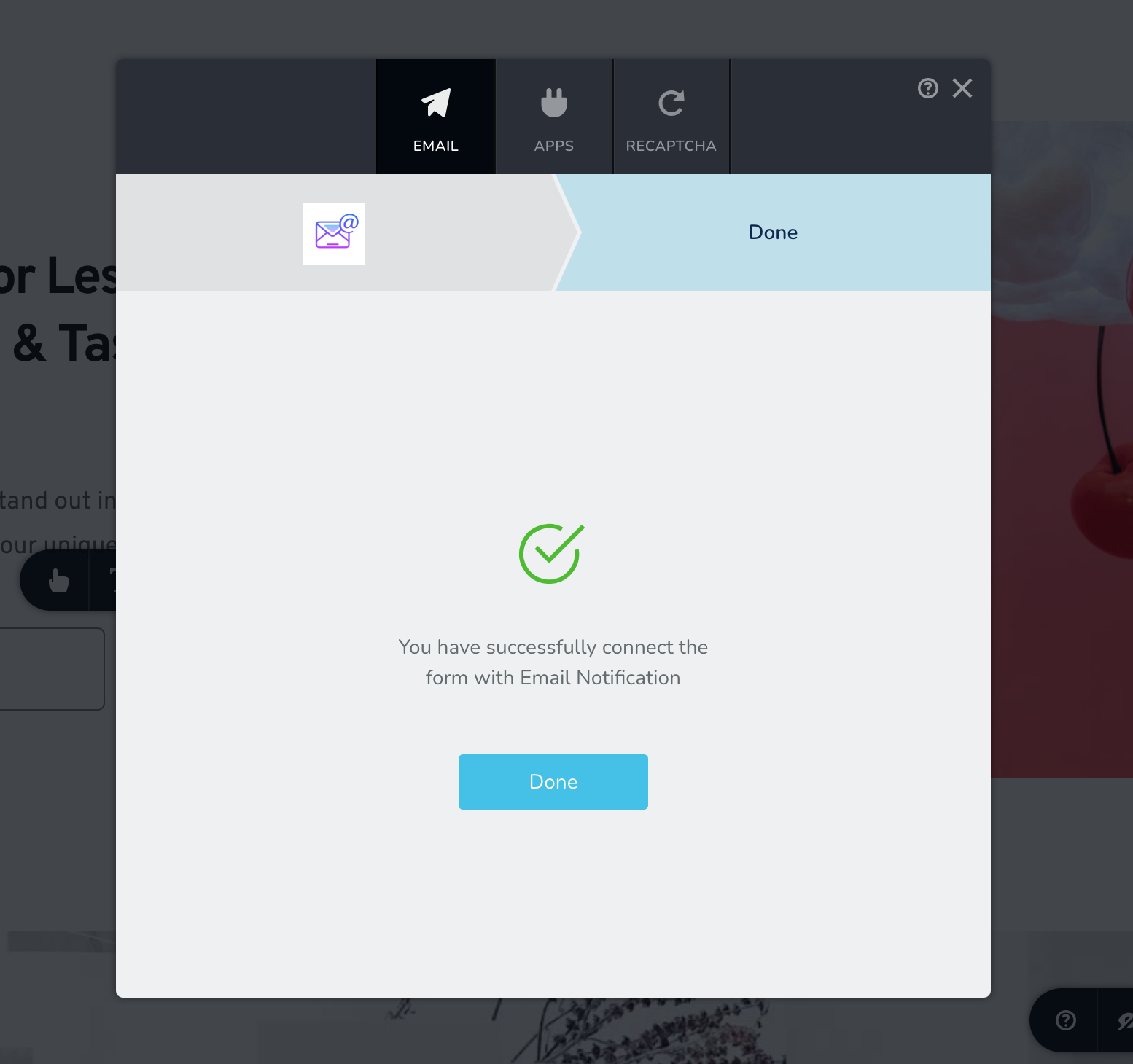
Step 4. You are done. Your form is connected with the Email notification app. Every time the form will be successful submitted you'll receive an email.
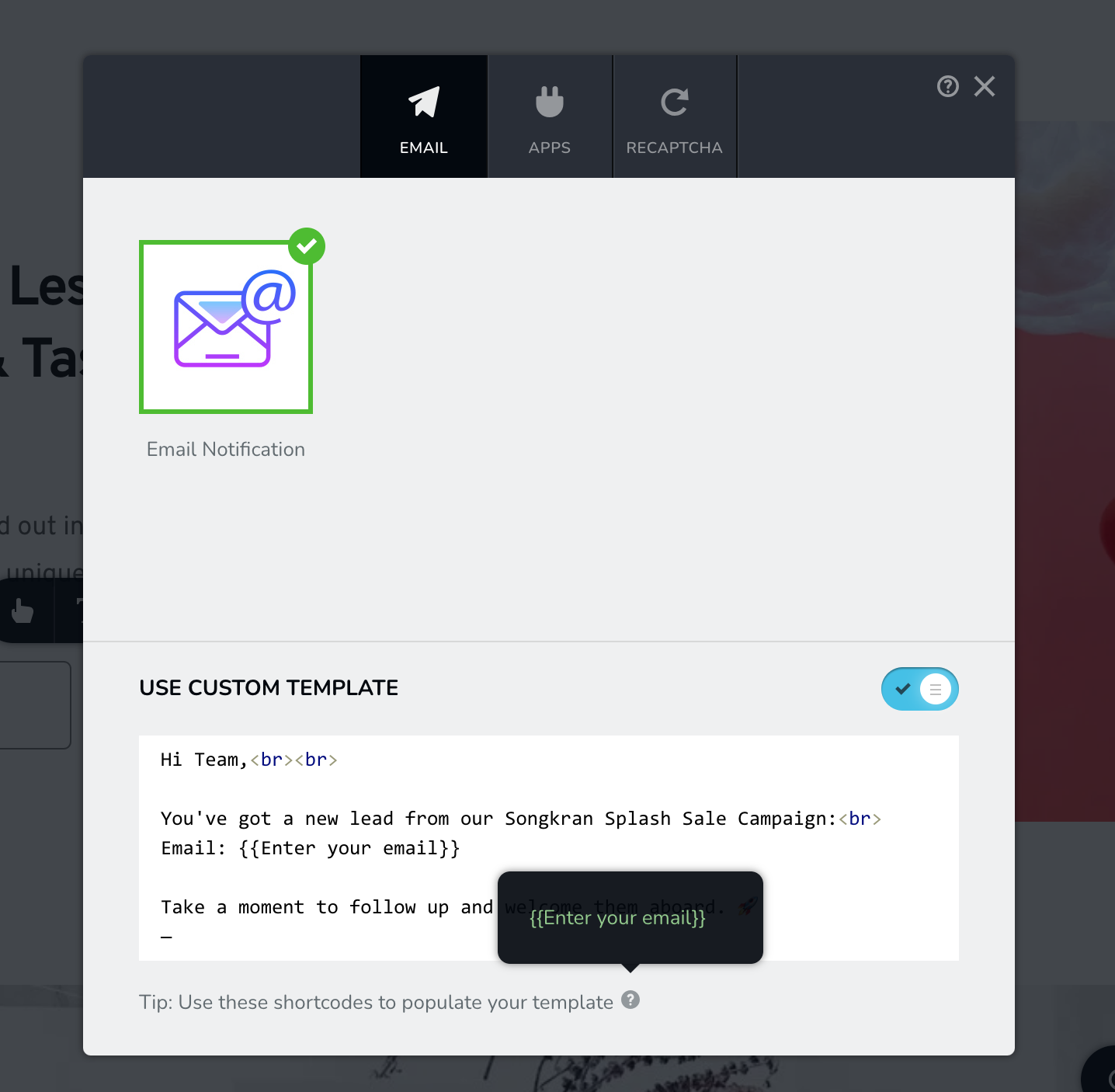
Please note: You can set a custom template for your notification email. We are also generating short-codes for your fields so you can include the lead info in the email.
Important: You can format your email using HTML, use to create a new line and to bold certain words. Here is an example: